
Using Shadowbox
Updated on July 20, 2026 • 6:00 Minutes to read
Updated on July 20, 2026
6:00 Minutes to read
Welcome to Shadowbox! Shadowbox is committed to providing you with the best service. If you have any questions, please reach out to us at the contact information provided at the
end of the guide.
Logging in
- Click on your associated ancillary care facility’s Shadowbox application.
The application icon is likely located on your desktop, your task bar, or in your
downloads folder. If you are having issues with the installation or finding the
application, please refer to the installation instructions.
- Enter your Username and Password. Your Username and your password will
be provided to you by Shadowbox. It is recommended that you update the
password after logging in for the first time. Once complete, click ‘LOG IN.’
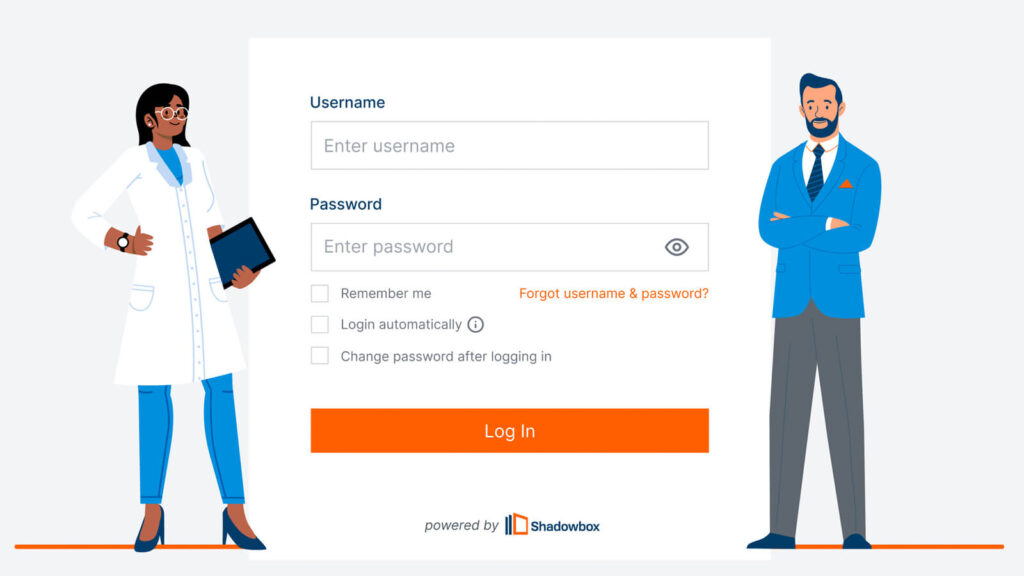
Remember me – If checked, the application will store the Shadowbox application credentials locally on the computer.
Login automatically – If checked, this will automatically log in the user once Shadowbox is opened.
Change password after login – If checked, this will prompt the user to update their password after clicking “LOG IN.” It is recommended that you update the password provided by Shadowbox upon first login.
Note: These passwords are not stored by your associated ancillary care facility. You may reset your Shadowbox password at any time by reaching out to Shadowbox. Contact information is provided at the end of the user guide.
How to Save Credentials
- You will be prompted to input two (2) sets of credentials. The first set, seen in the step above, are your associated ancillary care facility application credentials. The second credentials are for your EHR (Electronic Health Record – also known as Electronic Medical Record, or EMR).
1.1 The first set of credentials required to login to your associated ancillary care facility’s Shadowbox app are managed by Shadowbox. Your associated ancillary care facility may or may not have access to update these credentials but you can always reach out to support@shadowbox.com for assistance.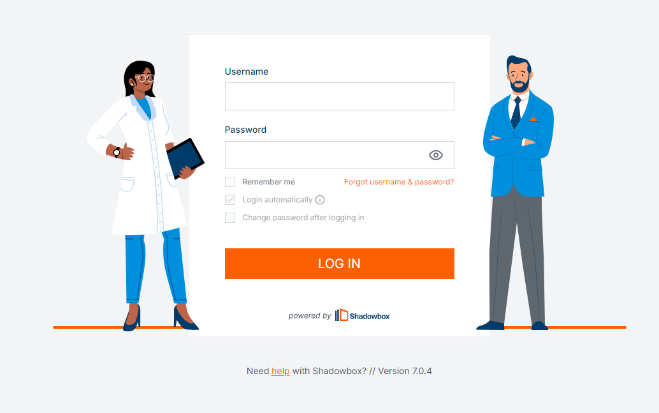
1.2 The second set of credentials (EHR) are managed by your EMR/EHR. Shadowbox and your associated ancillary care facility do not have access to update/change these credentials. - After you have logged into the app, it will open to your EHR login page. Log in to your EHR with your EHR credentials.
- You may need to complete a two-step verification (for example, your EHR may prompt you to enter a code sent to your mobile phone).
- The system will ask if you would like to store these credentials. If appropriate based on your protocol, you can select ‘Yes.’
4.1 Saving your credentials will not give Shadowbox access to your email address, the credentials will only be stored locally for the user on the desired workstation.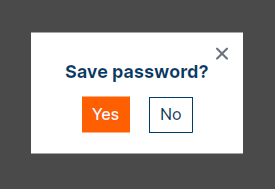
4.2 It is recommended to not click ‘Yes’ if multiple users access the workstation with workstation specific credentials. - To update your EHR credentials, including your password, go to the profile settings located in the top right-hand corner of the screen.
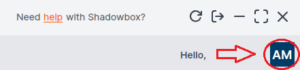
- Once in the profile settings, click on ‘App Settings’ on the left-hand side. Once you’ve updated your EHR credentials, click ‘Save.’
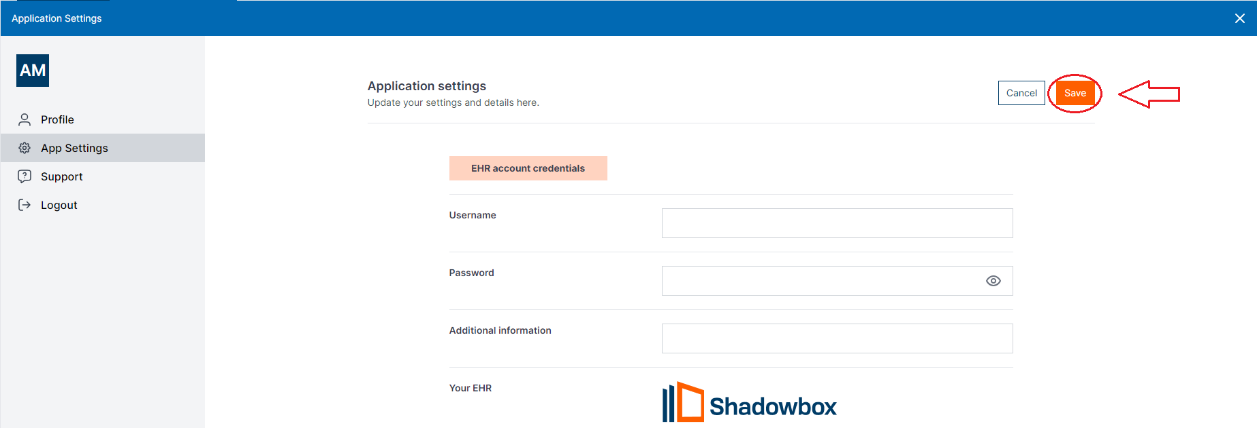
How to Place an Order
- To begin an order, access the patient chart in the EHR displayed within your associated ancillary care facility’s app. This generally requires searching for the patient, then clicking into the “information”, “hub” or “dashboard” tab of their chart.
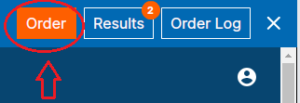
- When ready to order a test, click ‘Order’ in the top right-hand corner, as seen below. As a reminder, you need to have the chart open for the patient for whom you want to order a test.
- Your associated ancillary care facility’s app will automatically activate the digitized requisition form alongside the EHR, with the EHR on the left and the digitized requisition form on the right. Certain patient information will automatically transfer from the EHR to the requisition, including but not limited to patient demographic information (patient name, address, date of birth), diagnosis codes, medications, insurance information and clinician information.
You may update the information on the form as needed.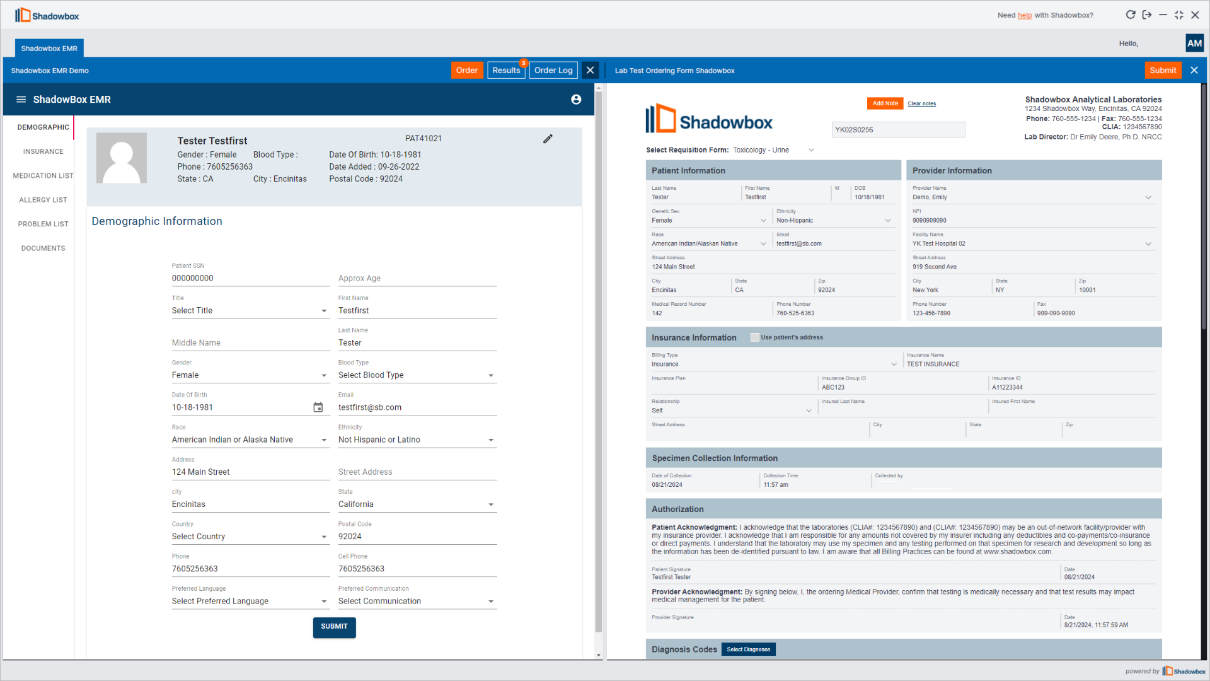
- Please note that there may be multiple requisition forms available. To select the
appropriate form, use the dropdown menu labeled 'Select Requisition Form' at
the top of the form.

- You can use the slider in the middle of the application to minimize or maximize
either size of the screen for enhanced ordering capabilities. Once adjusted the
application will remember your preferred size for the duration of the session. - On the digitized requisition located on the right side of the screen, scroll down to
enter the necessary information, such as the test order, additional diagnosis
codes, or responses to ask at order entry questions - Please note the diagnosis code section. The application may pull over all active
diagnosis codes within the patient chart. The diagnosis code button, ‘Active Dx
codes from EHR’ is designed to display all active diagnosis code in a patient
chart. Please note, the search in the pop up is for active diagnosis codes in the
patient chart. If you wish to edit the diagnosis codes, it is required to type in the
text field, in the correct format, on the requisition with commas to separate the
codes. The user will need to click the button to display a list of active diagnosis
codes in the patient’s chart. Select whichever codes apply to the test order and
click ‘OK.’

- Please note the medication section. The process is similar to the diagnosis
section. The application may pull over all active medications automatically or
provide a button to select whichever medications are relevant to the test order.
* Please be sure to complete the digitized requisition as instructed by your
associated ancillary care facility. - The patient’s insurance is automatically pulled from the patient's chart and sent
to your associated ancillary care facility. The information included is, the
subscriber, guarantor, policy ID, and insurance name, and will only appear if
active in the patient chart. Please verify all insurance information is up to date
and accurate prior to submitting the order. If you have any questions about
which information is required to submit, please reach out to your associated
ancillary care facility.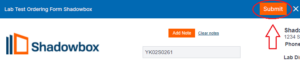
- When finished, click ‘Submit’ at the top right-hand corner of the screen. Ifthe requisition is incomplete, you will be prompted to input missing information.
- If you are a legal designee for the ordering provider and are assigned to be able
to add a provider’s signature to an order, then you will be prompted to enter
your four-digit PIN. This will populate the ordering provider's signature to the
submitted requisition form. *A legal designee is a person who is legally allowed by
state, local, and federal statute to order testing and append physician signature.
The requirements for who can be the legal designee of a clinician and thereby
allowed to order and append physician signature vary by state and local law.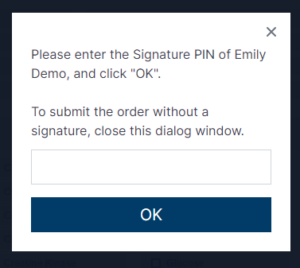
- Once a requisition is submitted, it will convert to a PDF file that will appear
for you to review. The order is electronically sent to your associated ancillary
care facility and a PDF file to the EHR.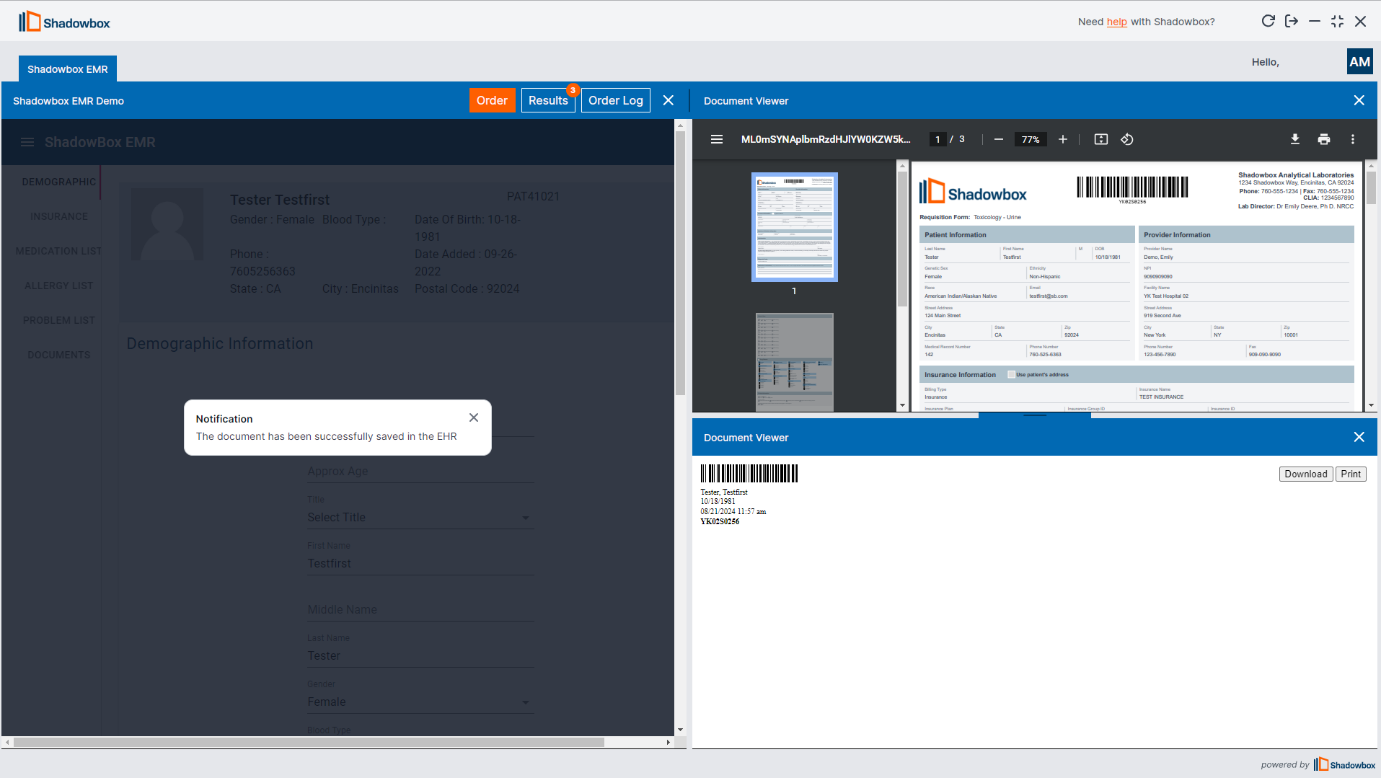
- If needed, you can print and/or download the document by doing so on the
right-hand side - The barcode label can be reprinted at a later time by accessing the order through
the Order Log.
How to View Order Log
- You can view the status of submitted orders and confirm that they were
successfully submitted and successfully saved to the EHR in the order log. - Submitted orders will be presented in a list and labeled as Incomplete and
Completed.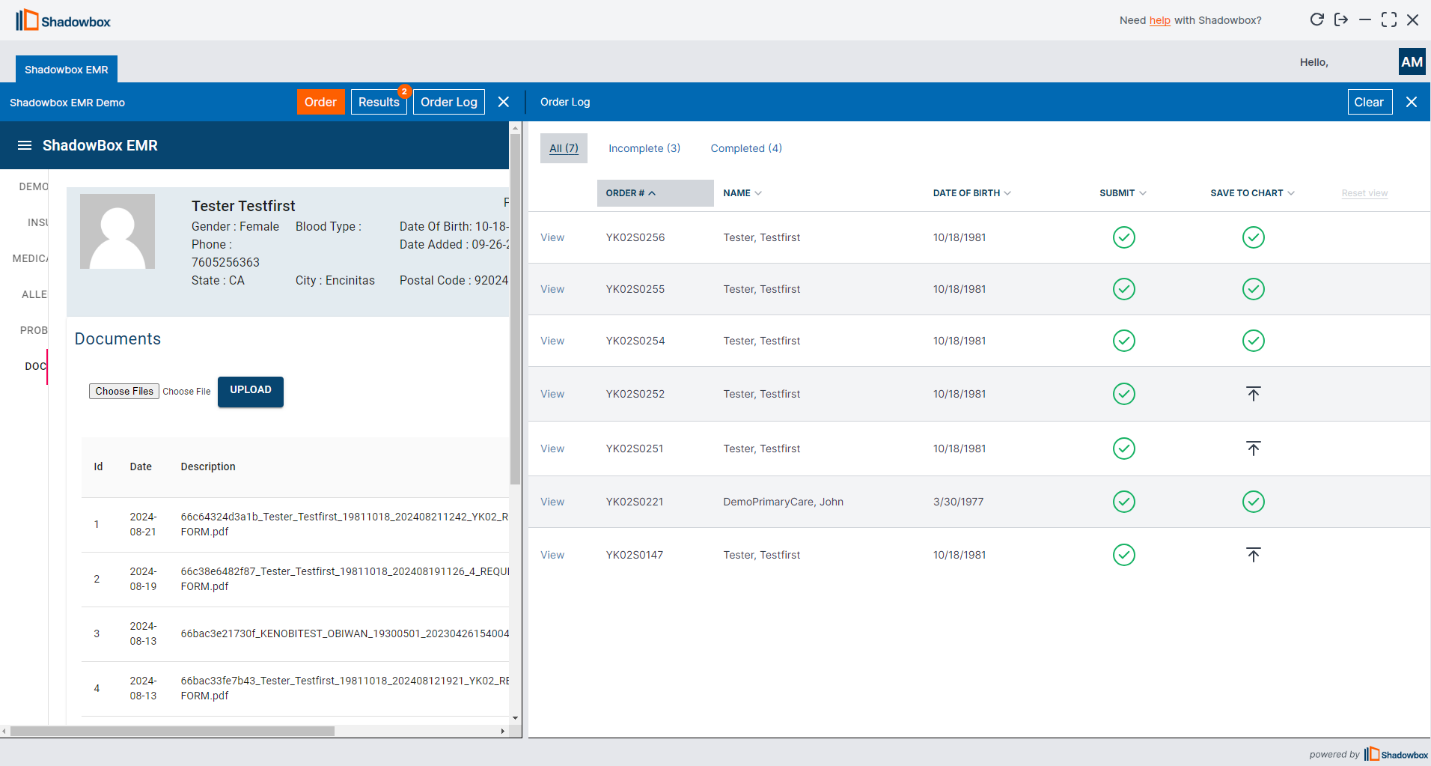
- If an order is not submitted or uploaded to the EHR successfully, you can
make further attempts to upload the document directly from the order log. - You can also view the timestamp of when an order was successfully submitted
and saved to the EHR by hovering over the green checkmark next to the order
information. - Orders cannot be edited once submitted. If you’d like to print a copy of the log,
simply right-click on the screen and select 'Print to PDF or printer'.
How to Review Results
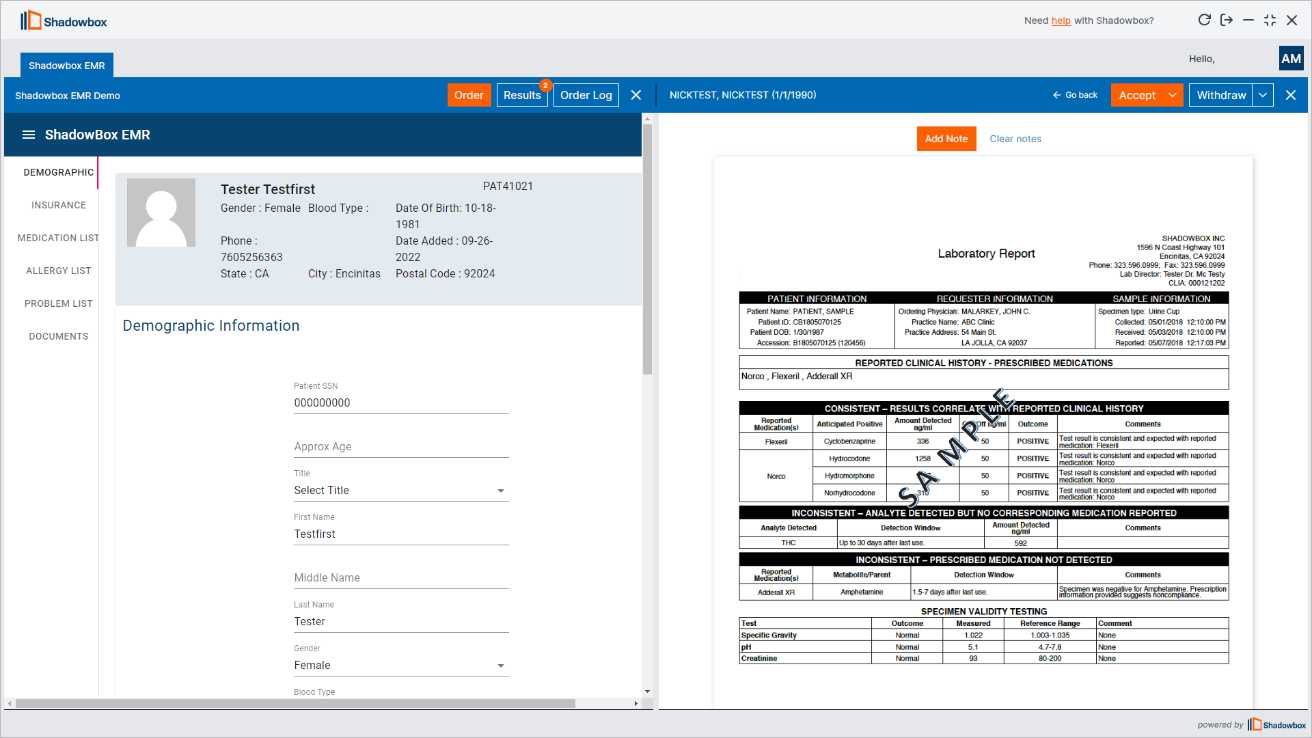
- To view results, you will need to click ‘Results’ in the top right-hand corner of
the screen as shown below. If there are any pending results, a number will
appear in the top right corner of the 'Results' tab, indicating how many results
are awaiting review.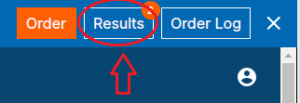
- The list of available results will appear on the right-hand side. All results that
exactly match critical patient data (patient name and date of birth) in the patient
chart will be automatically resulted and added to the EHR. Any result that is
automatically resulted will show in the completed section of the results tab.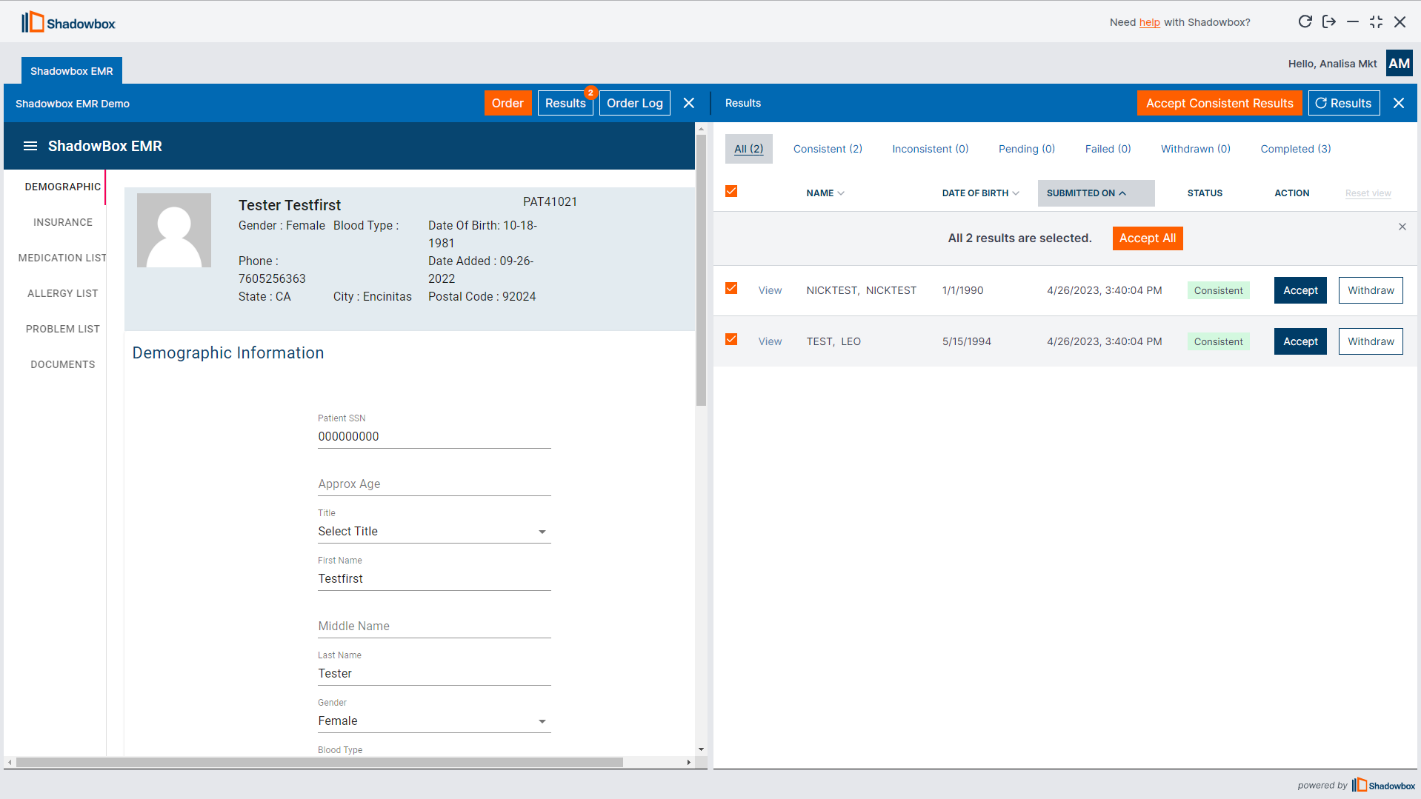
How to View Results Log
-
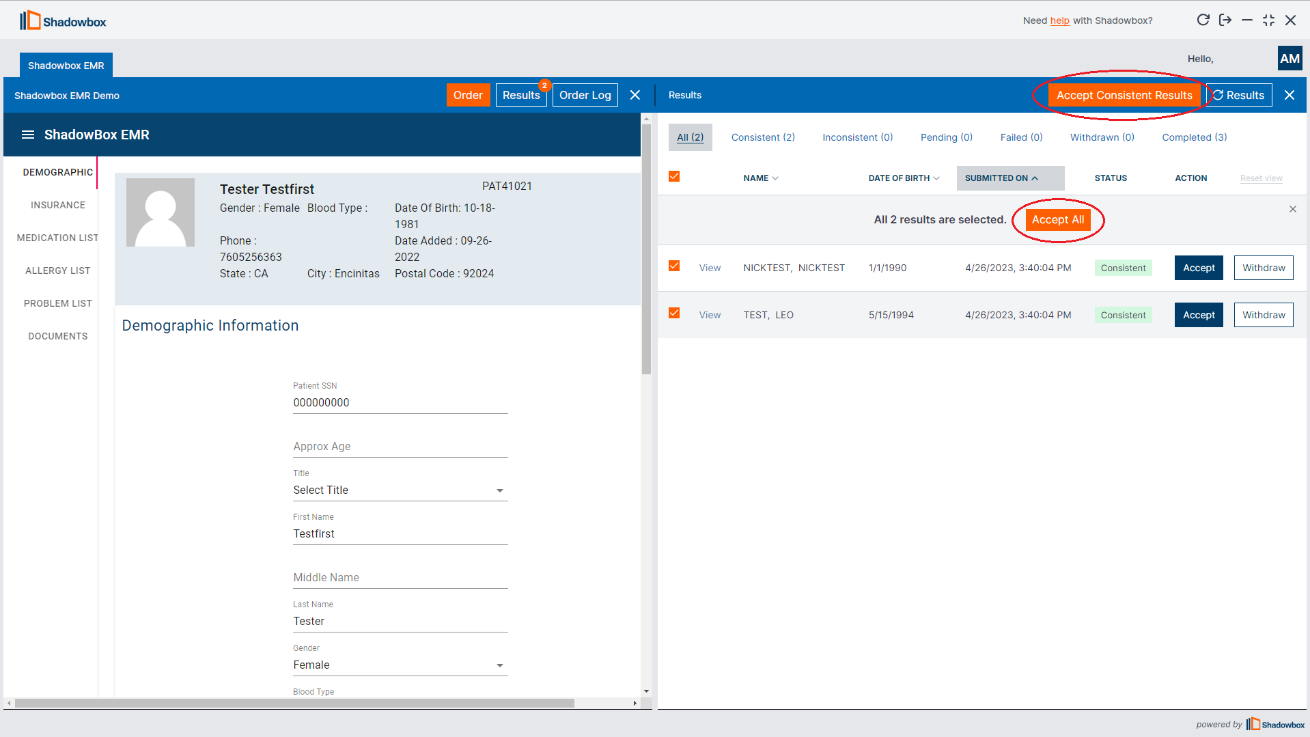
- At the top of the Results Log you will see the ‘Accept Consistent Results’ button. This will accept all consistent patient results that are pending approval. This is the quickest way to mass upload consistent test results into the EHR.
- You can accept patient results, select the checkboxes next to the desired test results, then click 'Accept Results’ or ‘Accept All.’ That will allow you to upload multiple results at a time.
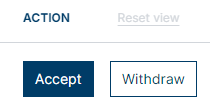
- You can accept or withdraw a single result by clicking the 'Accept' or ‘Withdraw’ button next to the desired test result.
- Last option to process results is to select ‘View’ button next to the desired test result. You will be able to view the desired test result and then select ‘Accept’ or ‘Withdraw’ in the top right-hand corner.
- Edits can be made to the PDF using the toolbar at the top of the result PDF
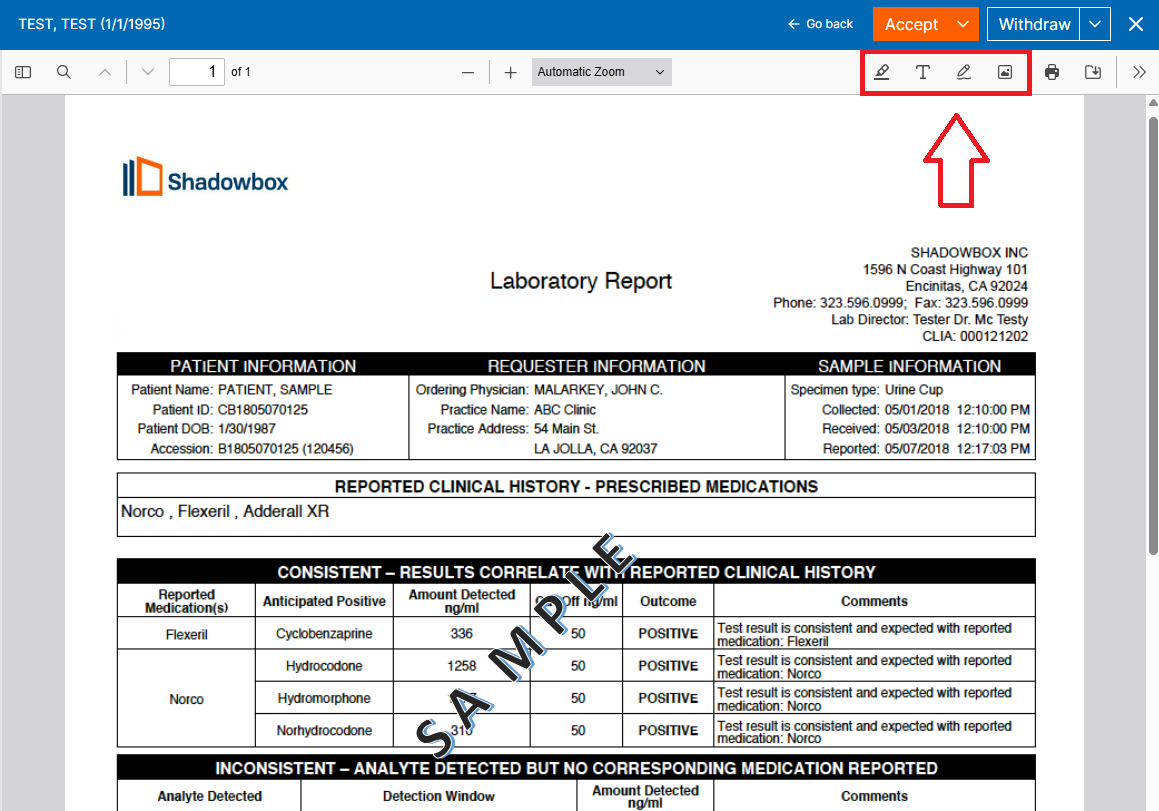
Options to edit include:
Highlight: use this tool to highlight important information on the result PDF
Text: use this tool to write additional notes directly onto the result PDF
Draw: use this tool to add a signature directly to the PDF result
Add or edit images: add additional images from your workstation directly
to the result PDF
Note: The result will save as a PDF exactly as shown once edits are added to the document so be sure not to cover any important information on your result PDF
- Once the result has been accepted into the patient’s chart, you will receive a notification in the top right-hand corner of the screen.
- Any result that does not exactly match the patient data will be listed in the Results Log, categorized as consistent, inconsistent, pending, or failed at the top of the Results Log

6.1 Consistent results are determined as “consistent” by your associated ancillary care facility’s parameters.
6.2 Inconsistent results are determined as “inconsistent” by your
associated ancillary care facility’s parameters.
6.3 Pending results may include those still being processed after you
select 'Accept Consistent Results' or 'Accept Results.'
6.4 Failed results indicate a mismatch between the test result and patient
data (i.e. patient name, date of birth, etc.). These results must be
reuploaded, which can be done within the Results Log.
6.5 Withdrawn results include any results that have been omitted or
withdrawn.
6.6 Completed results include any results that have been successfully
accepted or completed. - You will have the ability to filter the results by name, date of birth, date of generation of the result.
- Once a result is accepted either manually or automatically you can go to the EHR
to review the accepted test result.
Note: Shadowbox also offers a premium feature that enables fully automated results processing. Please contact our support team at support@shadowbox.com for more information.
How to View the History Log
- The History Log provides a comprehensive record of order and result activity across all users within the clinic.
- History Log entries can be viewed and filtered using the following categories:
2.1 Orders – Displays all orders submitted by clinic users.
2.2 Accepted Results – Displays all results that have been viewed and accepted into the associated patient chart.
2.3 Withdrawn Results – Displays all results that have been viewed and withdrawn
from the system.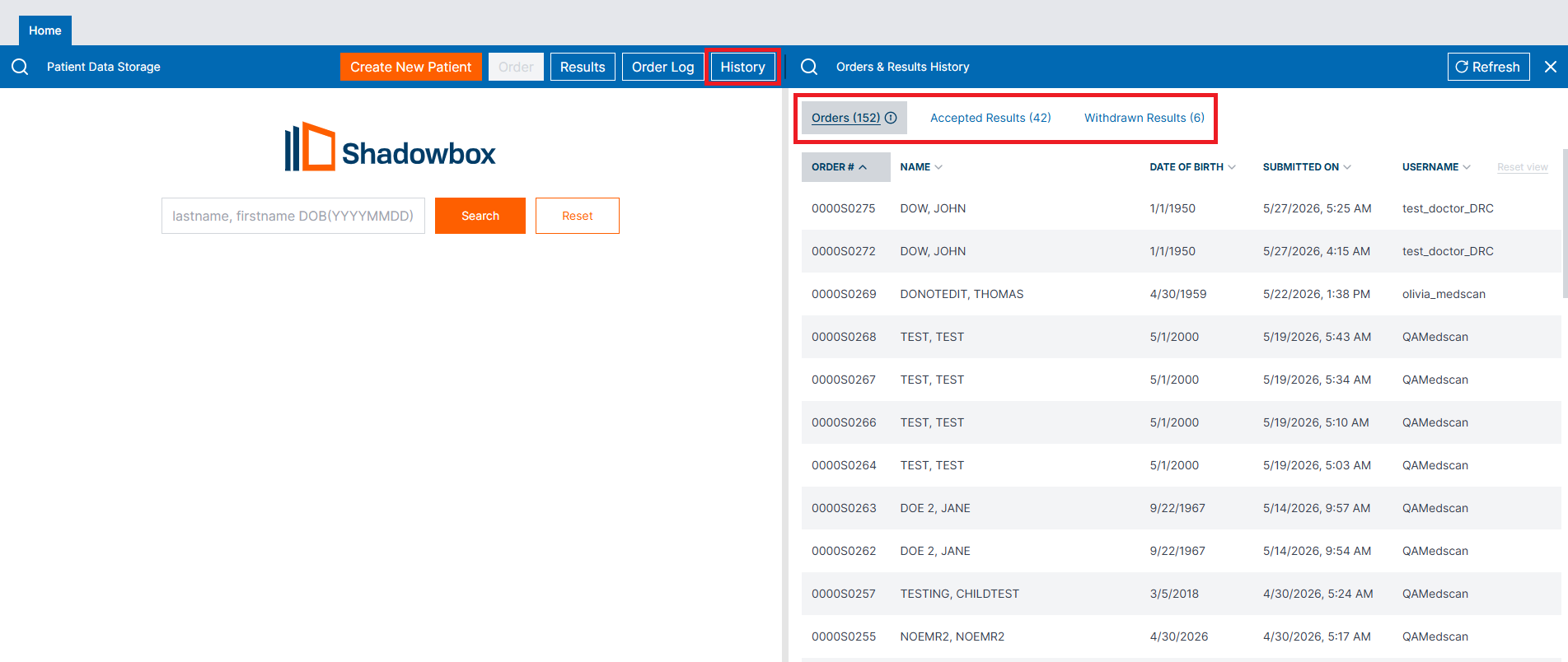
How to View User Profile Settings
- You can view your user profile settings within the application by clicking your
username at the top right-hand corner of the screen. You can see information
like your email address, default provider, and EHR information and credentials.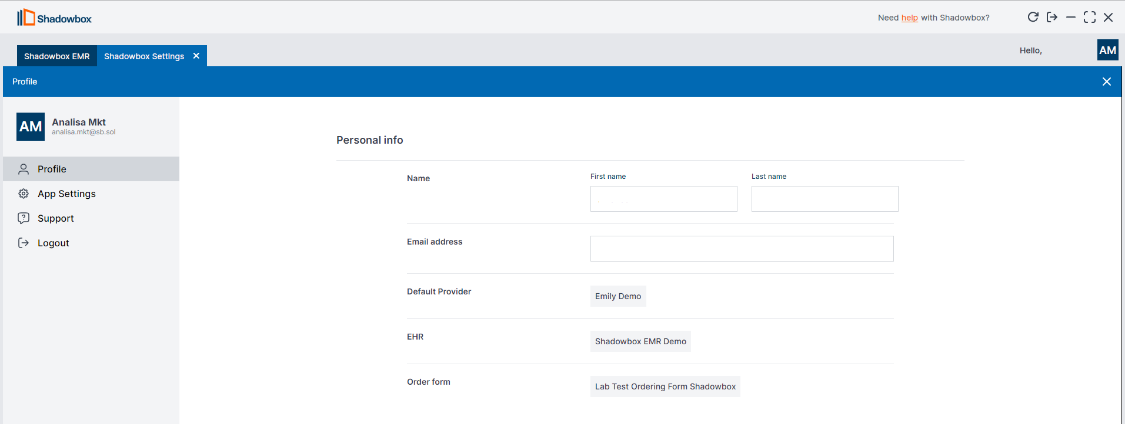
- You can also access a link to our support hub as well as view Shadowbox contact
information.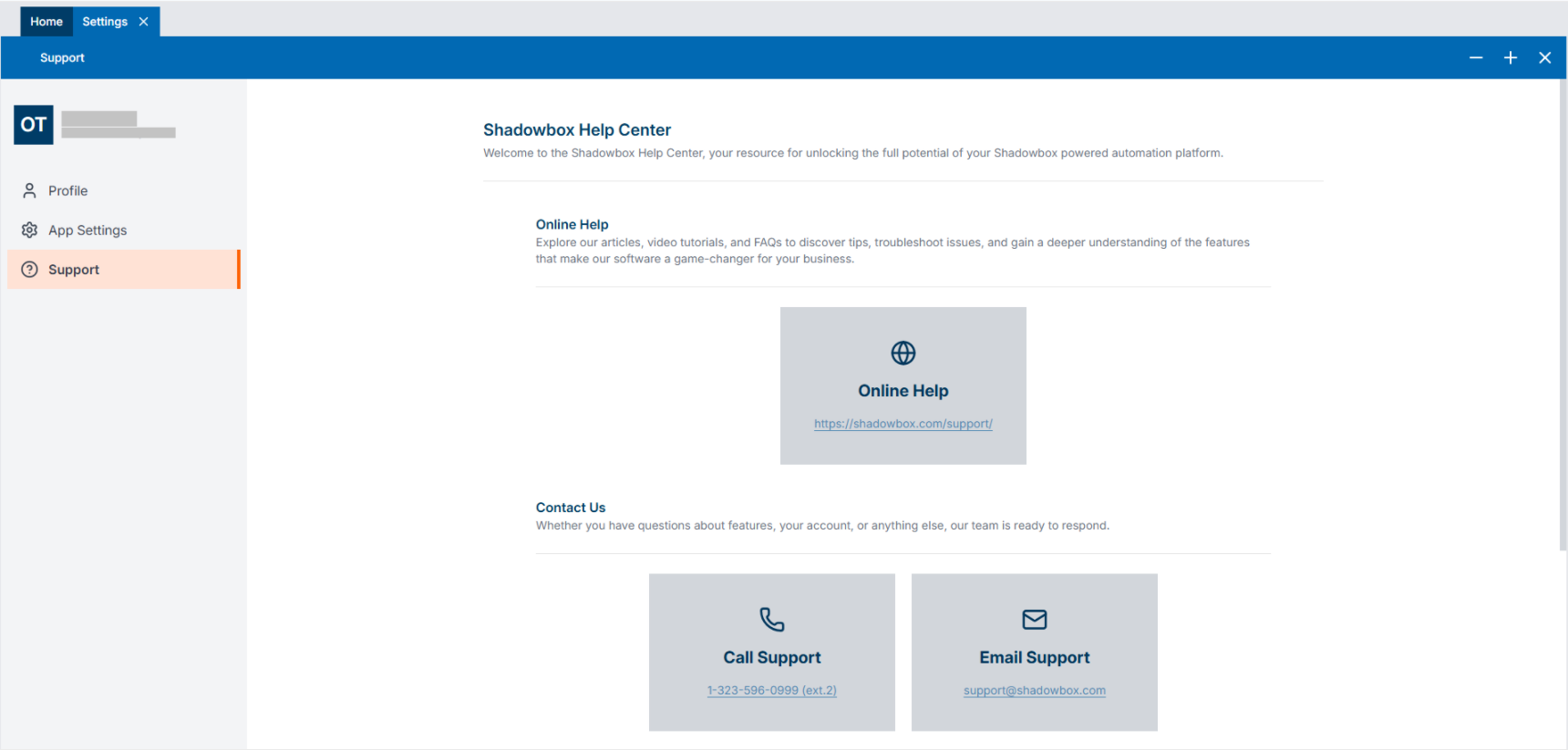
Accessing end-user training & videos
Shadowbox provides user guides and videos. Our dedicated Customer Success Team will provide links for end-user training videos, guides and marketing documents via email. Please reach out to support@shadowbox.com if you need access to your training videos guides or marketing documents.
End User License Agreement
THIS END USER LICENSE AGREEMENT (THE "AGREEMENT" or “EULA”) IS A LEGAL AGREEMENT BETWEEN THE ENTITY YOU REPRESENT (E.G., THE HOSPITAL, DOCTOR’S OFFICE, CLINIC THAT EMPLOYS YOU) (THE "END USER") AND SHADOWBOX, INC. ("SHADOWBOX"). BY CLICKING THE "I ACCEPT" BUTTON OR USING THE SHADOWBOX SOFTWARE, YOU ACKNOWLEDGE THAT YOU HAVE, ON BEHALF OF THE END USER, REVIEWED AND ACCEPTED THIS AGREEMENT. YOU REPRESENT THAT YOU HAVE THE AUTHORITY TO BIND THE END USER TO THE TERMS AND CONDITIONS IN THIS EULA.
IF THE END USER DOES NOT AGREE WITH ALL THE TERMS OF THIS AGREEMENT, DO NOT USE THE SHADOWBOX SOFTWARE AND DELETE THE SHADOWBOX SOFTWARE FROM YOUR COMPUTER.
The Shadowbox software to which this EULA applies (the “Shadowbox Software”) allows you and the End User to receive information from and transmit information to the Shadowbox online platform (the “Platform”), all of which intended to help make your workday a little easier. The Shadowbox Software works just like the browser you currently use to access the software applications you use every day but now includes specially created “easy buttons” intended to automate tasks and reduce data entry.
License to the Shadowbox Software:
Subject to the terms and conditions of this EULA and compliance with this EULA, Shadowbox grants the End User a limited, non-transferable, non-exclusive, non-sublicensable, revocable license to download, install and use one (1) copy of the Shadowbox Software, in object code format, on one (1) computer for the sole purpose of interfacing with the Platform.
Reservation:
All rights not granted hereunder are hereby reserved by Shadowbox and, as applicable, by its licensors. The Shadowbox Software is licensed, not sold. This EULA does not grant the End User any title or ownership in the Shadowbox Software and should not be construed as a sale or transfer or transfer of any intellectual property or other rights to the Shadowbox Software.
Restrictions:
End User shall, directly or indirectly, and the End User shall not permit any third party to: (1) reverse engineer, decompile, disassemble or otherwise attempt to discover the object code, source code or underlying ideas or algorithms of the Shadowbox Software or the Platform or analyze the Shadowbox Software or the Platform to learn the details of its design, construction, or production in order to produce a copy or improved version thereof; (2) modify, translate, or create derivative works based on any element of the Shadowbox Software or the Platform or any related documentation; (3) rent, lease, distribute, sell, assign, or otherwise transfer rights to use the Shadowbox Software; (4) remove, disable, or circumvent any security protections or any technical measures that control access to the Shadowbox Software or the Platform; (5) remove any proprietary notices from the Shadowbox Software or any related documentation; (6) publish or disclose to third parties any evaluation of the Shadowbox Software or the Platform without Shadowbox’s prior written consent; (7) use the Shadowbox Software or the Platform for any purpose other than its intended purpose or not in accordance with any provided documentation, including using the Shadowbox Software or the Platform, or any related documentation (or any portion of any of the foregoing) to design, development, create or manufacture any software or service that competes with the Shadowbox Software or the Platform; (8) interfere with the integrity or performance of the Shadowbox Software or the Platform or the Shadowbox services that are made available via the Platform; (9) introduce into the Shadowbox Software or the Platform any copyleft software, open source software (including and software licensed under a license that approved by the Open Source Initiative (www.opensource.org) or any viruses, worms, time bombs, Trojan horses and other harmful or malicious code, malware, files, scripts, agents or programs that may damage the operation of any computer, hardware, device, software or network (“Malicious Code”); (10) use the Shadowbox Software or the Platform send or store data which violates the rights of any individual; (11) use the Shadowbox Software or the Platform in violation of any laws and regulations applicable to the End User’s use of the Shadowbox Software or the Platform; or attempt to gain unauthorized access to the Shadowbox Software or the Platform or their related systems or networks. The End User shall be responsible for its actions and the actions of its users while using the Shadowbox Software and the Platform.
Acceptable Use Policy:
End User acknowledges and agrees:
- to abide by all local, state, national, and international laws and regulations and all contracts to which the End User is a party, in all cases as applicable to the use of the Shadowbox Software or the Platform, including without limitation the provision and storage of data;
- not to send or store data on or to the Shadowbox Software or the Platform which violates the rights of any individual or entity established in any jurisdiction;
- not to upload in any way any information or content that contains Malicious Code or data that may damage the operation of any software, system, computer or mobile device;
- except in compliance with applicable laws and Customer’s contractual obligations, not to upload in any way any data regarding an individual’s financial or economic identity, sexual orientation, religious beliefs, or an individual’s first name and last name, or first initial and last name, or any identifier which may be personally identifiable of an individual, in combination with any one or more of the following data elements that relate to such individual: Social Security number, driver's license number or state-issued identification card number, financial account number, or credit or debit card number, with or without any required security code, access code, personal identification number or password, that would permit access to an individual’s financial account;
- except in compliance with applicable laws and End User’s contractual obligations, not to upload any information comprised of “Protected Health Information” subject to and defined by the Health Insurance Portability and Accountability Act (“HIPAA”);
- not to use the Shadowbox Software or the Platform for illegal, fraudulent, unethical or inappropriate purposes;
- not to interfere with or disrupt networks connected to the Shadowbox Software or the Platform or interfere with other ability to access or use the Shadowbox Software or the Platform;
- not to distribute, promote or transmit through the Shadowbox Software or the Platform any unlawful, harmful, obscene, pornographic or otherwise objectionable material of any kind or nature;
- not to transmit or post any material that encourages conduct that could constitute a criminal offense or give rise to civil liability;
- not to interfere with another customer’s use and enjoyment of the Platform or another person or entity's use and enjoyment of similar services;
- not to use the Shadowbox Software or the Platform in any manner that impairs the Shadowbox Software or the Platform, including without limitation the servers and networks on which the Platform is provided;
- to comply with all regulations, policies and procedures of networks connected to the Shadowbox Software or the Platform and Shadowbox’s service providers;
- not to circumvent any controls or features of the Platform or the Shadowbox Software which are intended to enforce or enable compliance with HIPAA; and
- to use the Shadowbox Software and the Platform only in accordance with any provided documentation.
End User is responsible for creating, implementing and enforcing internal guidelines, policies and procedures, including but not limited to a HIPAA compliant privacy policy, concerning the use and access of personal health information. End User is solely responsible to ensure that its employees and users receive proper HIPAA training and comply with such guidelines, policies and procedures.
End User acknowledges and agrees that Shadowbox neither endorses the contents of any communications, data, or other information nor assumes any responsibility for any offensive material contained therein, any infringement of third-party intellectual property rights arising therefrom or any crime facilitated thereby. Shadowbox may remove any violating content posted or stored using the Shadowbox Software or the Platform or transmitted through the Shadowbox Software or the Platform, without notice to the End User. Notwithstanding the foregoing, Shadowbox does not guarantee, and does not and is not obligated to verify, authenticate, monitor or edit the communications, data, or any other information input into or stored in the Shadowbox Software or the Platform for completeness, integrity, quality, accuracy or otherwise. The End User shall be responsible and liable for the completeness, integrity, quality and accuracy of communications, data, and other information input into the Shadowbox Software or the Platform.
Shadowbox reserves the right to amend, alter, or modify the conduct requirements as set forth in this EULA at any time. Shadowbox may deliver notice of such updated requirements to the End User via email or through the Shadowbox Software or the Platform. End User’s continued access to and use of the Shadowbox Software or the Platform following issuance of such updated requirements shall constitute the End User’s acceptance thereof.
Camera and Microphone Access:
The Shadowbox Software includes optional features that may require access to the End User device’s camera and/or microphone. These features will only function if the End User (a) enables the corresponding settings within the software, and (b) has granted permission through the device’s operating system settings. If the End User device’s operating system restricts access to the camera or microphone for software applications, the software will not be able to access those components. By enabling these features, the End User acknowledges and consents to the software accessing their camera and/or microphone solely for the purposes intended by the application.
Indemnification:
The End User agrees that use of the Shadowbox Software and the Platform shall be at the End User’s own risk. To the fullest extent permitted by applicable law, End User agrees to defend, indemnify and hold harmless Shadowbox, its officers, directors, employees and agents, from and against any and all claims, damages, obligations, losses, liabilities, costs or debt, and expenses (including but not limited to attorney’s fees) arising from: (i) End users use of and access to the Shadowbox Software and the Platform; (ii) the violation of any term of this EULA; (iii) the violation of any third party right, including without limitation any copyright, property, or privacy right; or (iv) any claim that any End User content, including without limitation any communications, data, or other information stored on or processed via the Shadowbox Software or the Platform, caused damage to a third party. This defense and indemnification obligation will survive this EULA and the End User’s use of the Platform.
Disclaimer of Warranties:
THE SHADOWBOX SOFTWARE AND THE PLATFORM ARE PROVIDED “AS-IS,” WITHOUT WARRANTY OF ANY KIND, EITHER EXPRESS OR IMPLIED, INCLUDING WITHOUT LIMITATION ANY WARRANTIES OF MERCHANTABILITY, FITNESS FOR A PARTICULAR PURPOSE, NON‑INFRINGEMENT AND TITLE, QUALITY, SUITABILITY, OPERABILITY, CONDITION, SYSTEM INTEGRATION, NON-INTERFERENCE, WORKMANSHIP, TRUTH, ACCURACY (OF DATA OR ANY OTHER INFORMATION OR CONTENT), ABSENCE OF DEFECTS, WHETHER LATENT OR PATENT, AND ANY WARRANTIES ARISING FROM A COURSE OF DEALING, USAGE, OR TRADE PRACTICE.
Limitation of Liability:
IN NO EVENT SHALL SHADOWBOX OR ITS LICENSORS BE LIABLE FOR LOST PROFITS, SPECIAL, INDIRECT, INCIDENTAL, OR CONSEQUENTIAL DAMAGES RESULTING FROM POSSESSION, USE OR MALFUNCTION OF THE SHADOWBOX SOFTWARE OR THE PLATFORM, ANY LOSSES OR DAMAGES CONNECTED WITH OR CONSISTING OF DAMAGE TO PROPERTY, LOST OR CORRUPTED DATA OR FILES, LOSS OF GOODWILL, COMPUTER, ERRORS AND LOST BUSINESS OR OTHER INFORMATION AS A RESULT OF POSSESSION, USE OR MALFUNCTION OF THE SHADOWBOX SOFTWARE OR THE PLATFORM, EVEN IF SHADOWBOX HAS BEEN ADVISED OF THE POSSIBILITY OF SUCH LOSS OR DAMAGES. SHADOWBOX'S TOTAL AGGREGATE LIABILITY UNDER OR RELATING TO THE SUBJECT MATTER OF THIS EULA IN ALL CASES SHALL NOT EXCEED $100. THE FOREGOING APPLIES EVEN IF ANY LIMITED REMEDY FAILS OF ITS ESSENTIAL PURPOSE.
Term & Termination:
Without prejudice to any other rights of Shadowbox, this EULA shall remain in effect for as long as the End User uses, operates, or runs the Shadowbox Software. This EULA shall terminate automatically if the End User fails to comply with its terms and conditions. Additionally, Shadowbox may terminate this EULA by providing the End User written notice of such termination. Upon termination, the End User must uninstall and delete all copies of the Shadowbox Software. The sections entitled “Reservation,” “Restrictions,” “Acceptable Use Policy,” “Indemnification,” “Disclaimer of Warranties,” “Limitation of Liability,” “Term & Termination,” “Choice of Law & Jurisdiction,” and “Miscellaneous” shall survive any termination of this EULA.
Choice of Law and Jurisdiction:
This EULA, and the rights and obligations of the End User and Shadowbox, shall be construed and enforced under California law as such law is applied to agreements between California residents entered into and to be performed within California, without regard to California’s conflict of law principles. To the extent any claims are governed by federal law, such federal law shall also be applicable. The End User and Shadowbox consent to the exclusive personal jurisdiction of the state and federal courts located in Los Angeles, California, in connection with any claim or dispute concerning this EULA or the subject matter of this EULA, and End User and Shadowbox waive any objection based on venue or the inconvenience of such form. If End User is located outside the United States, the application of the United Nations Convention on Contracts for the International Sale of Goods is expressly excluded. The parties further agree to waive and opt-out of any application of the Uniform Computer Information Transactions Act (UCITA), or any version thereof, adopted by any state of the United States in any form
Amendments:
Shadowbox reserves the right to amend this EULA at any time, in its sole discretion, upon notice to the End User. If any such changes are unacceptable to the End User or cause the End User to no longer be in compliance with the terms and conditions of this EULA, End User shall terminate this EULA, by uninstalling and deleting the Shadowbox Software, as set forth above.
Miscellaneous:
This EULA represents the complete agreement between the End User and Shadowbox regarding the Shadowbox Software and the Platform and supersedes all prior agreements and representations, warranties or understandings between the End User and Shadowbox regarding the subject matter. If any provision of this EULA is held to be unenforceable for any reason, such provision shall be reformed only to the extent necessary to make it enforceable, and the remaining provisions of this EULA shall remain in full force and not be affected. No term or provision of this EULA shall be considered waived by a party, and no breach excused by a party, unless such waiver or consent is in writing signed on behalf of the party against whom the waiver is asserted. No consent by a party to, or waiver of, a breach by a party, whether express
If you have any questions, comments, or concerns, please reach out to us with your
name and location. We are happy to assist you at SUPPORT@SHADOWBOX.COM